


GLS API - 3.x
Compatibility (OpenCart versions):
- Stock: In Stock
- Model: gls-api-3x
Available Options
GLS API is a professional OpenCart module for automated transfer of logistics data between your e-shop and the GLS shipping system via API. It enables fast shipment submission and automatic label generation directly from the store administration — with a single click, your shipping label is ready for printing.
Simplify your shipping workflow: eliminate manual data entry, reduce errors, and speed up the entire fulfillment process. The module is designed without modifying the OpenCart core, installation is handled via OCMOD, and regular updates are provided free of charge.
Why GLS API?
- Speed: shipment submission and label printing in just a few clicks.
- Accuracy: elimination of errors caused by manual data entry.
- Automation: customer notifications, order status updates, and automatic sending of tracking links.
- Compatibility: works with various shipping and payment modules, including multistore environments.
Main Module Features
- shipment submission directly from your e-shop
- label generation and printing directly from your e-shop
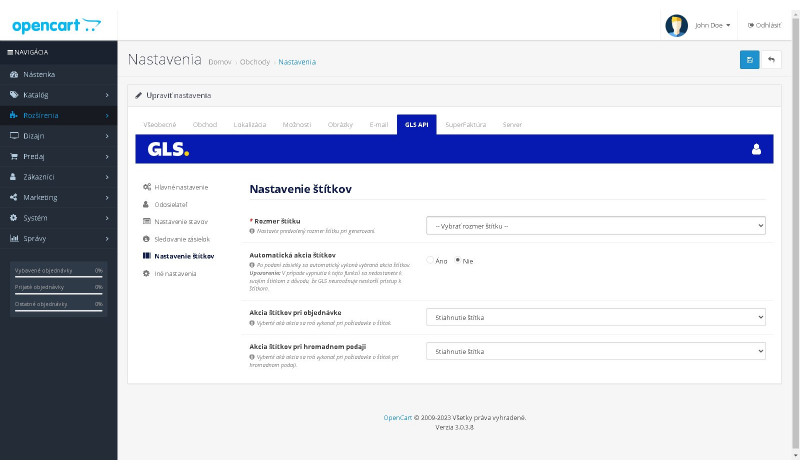
- label size configuration during generation
- label output options: forced print, forced PDF download, forced display
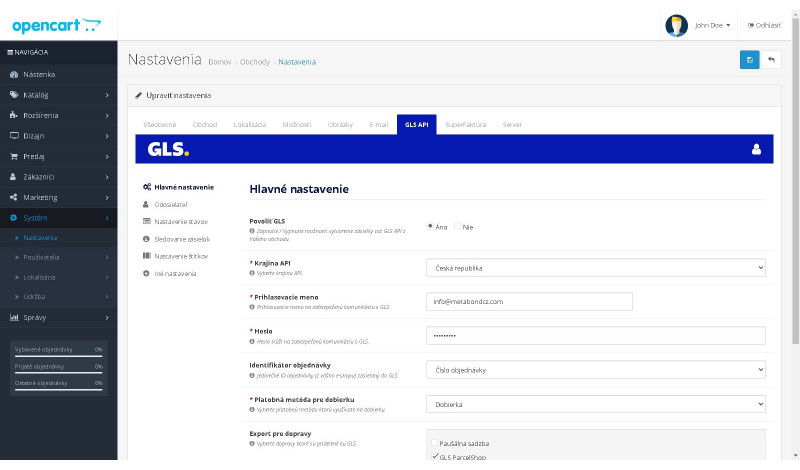
- sender configuration
- mapping any shipping method in your e-shop to the module (including X-shipping, CzechPost, Multishipping)
- cash on delivery pairing with your payment module (including X-payment)
- post-submission actions configuration (automatic label generation or shipment confirmation only)
- automatic customer notification after shipment submission
- order status update after submission with tracking link delivery
- validation checks during shipment submission (e.g. invoice issued)
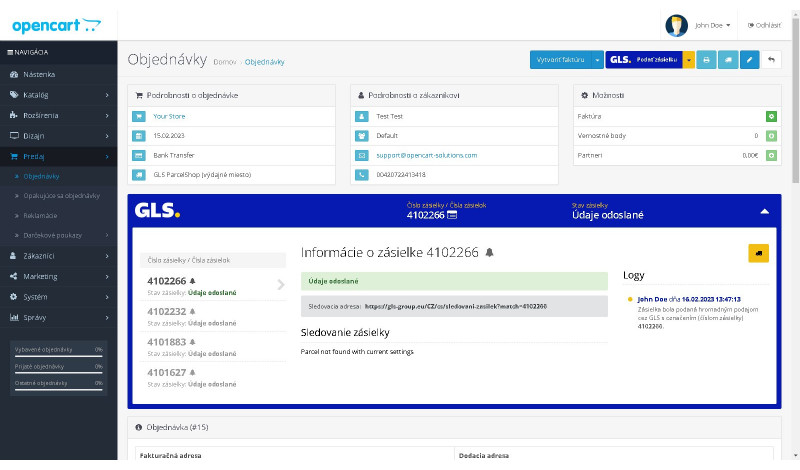
- log center showing who performed which action and when
- automatic notifications on order status changes
- multistore support
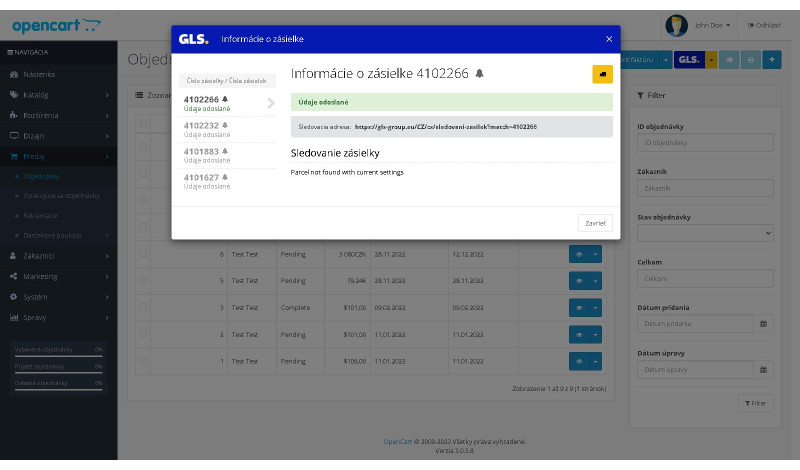
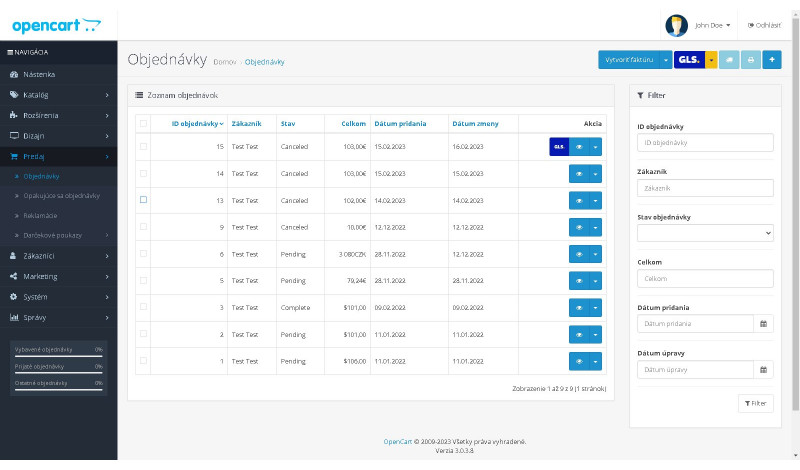
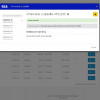
- visual indication of submitted orders with modal status window
- detailed order information display
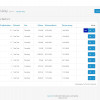
- bulk shipment submission
- package count configuration
- GLS ParcelShop submission support
- and much more
Supported GLS Countries
Slovakia, Czech Republic, Hungary, Slovenia, Romania, Croatia
Supported Destinations
Support for all destinations provided by GLS.
Additional Benefits
- Easy installation via OCMOD — no core file overrides.
- Free updates and continuous feature improvements.
- Fast and reliable technical support.
- The module is regularly extended with new features based on user feedback.
Installation and Support
Installation is handled via OCMOD. If you require custom modifications, theme compatibility adjustments, or integration with an internal system, paid custom development and fast technical support are available.
Module Installation Instructions
Before starting the installation of the module in OpenCart, we strongly recommend creating a backup of all store files and the database.
- Download the module file for the required OpenCart version from our website (if the archive contains installation instructions, please follow them).
- In the OpenCart administration panel, navigate to Extensions / Installer and click the Upload button.
- Select the downloaded file and wait until the module is fully installed. After successful installation, the message “Application installed successfully” will be displayed.
- Go to the Extension Modifications (Application Manager) and click the Refresh or Update button to rebuild modifications.
- Then open User Groups and assign permissions to view and manage the module for the administrator or selected users by clicking Select All.
After completing these steps, the module will be successfully installed and ready to use. You can now proceed with its configuration.