

GLS ParcelShop 3.x
Compatibility (OpenCart versions):
- Stock: In Stock
- Model: gls-parcelshop-3x
Available Options
GLS ParcelShop Shipping is a dedicated shipping module for the OpenCart platform that integrates GLS ParcelShops and pickup point selection into your online store. With this module, customers can conveniently select GLS delivery points from a map or list during checkout without leaving the store interface.
Why offer GLS ParcelShop delivery?
GLS operates a wide network of ParcelShops where customers can collect their parcels at a time and place that suits them best. ParcelShop delivery is increasingly popular because it offers flexibility, convenience, and reduced delivery-failure risk compared to doorstep delivery. This module seamlessly brings this capability to your OpenCart store and enhances the shipping options you offer.
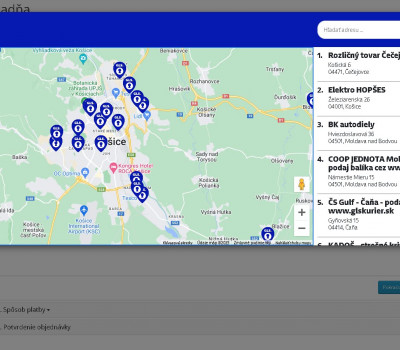
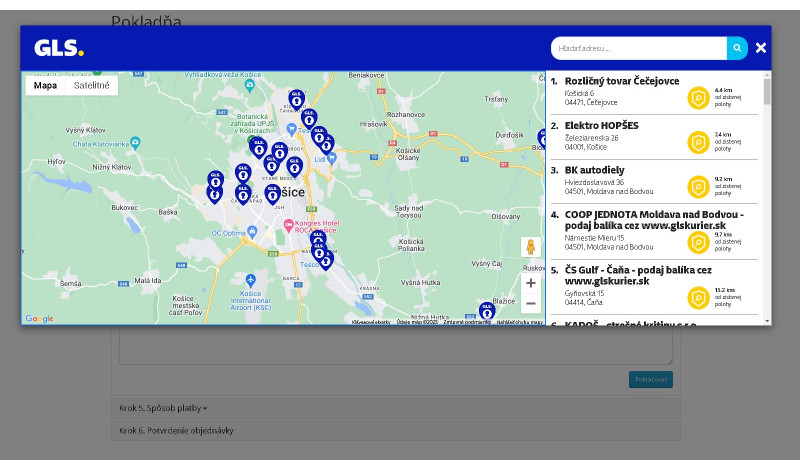
The integrated pickup point selector allows users to choose their preferred GLS ParcelShop location either by interacting with an interactive map or by searching through a list of available locations, leading to a smoother and more transparent checkout experience.
Main module benefits
- integration of GLS ParcelShop pickup point selection directly into checkout
- customers choose GLS ParcelShops from an interactive map or searchable list
- enhances customer shipping experience with flexible pickup options
- reduces delivery issues and failed home deliveries
- improves transparency of shipping options during order placement
- supports dynamic display of ParcelShop locations based on customer address
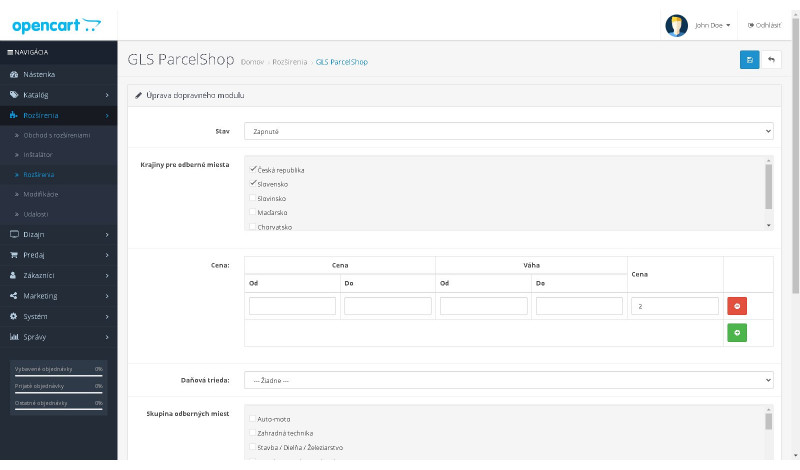
- easy to configure and manage from OpenCart admin
- compatible with standard OpenCart shipping setups
How it works in practice
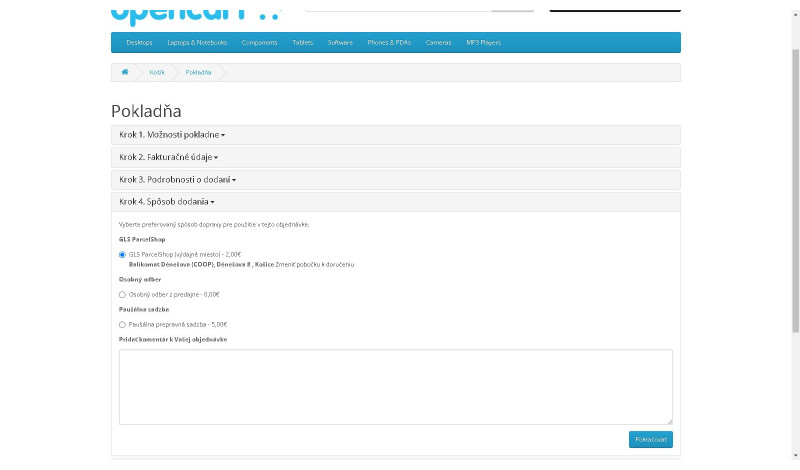
Once installed and configured, the GLS ParcelShop Shipping module adds a new shipping method to your OpenCart store. During checkout, customers are presented with GLS ParcelShop options based on their delivery address. They can either view nearby pickup points on an embedded map or scroll through a list of locations. After selecting their preferred ParcelShop, the choice is linked to their order, and you can use that information for fulfillment and labeling.
This workflow not only improves the user experience but also helps reduce support inquiries related to delivery confusion, making your store more efficient and customer-friendly.
Compatibility
The module is designed for OpenCart 3.x (and potentially compatible with earlier major branches depending on configuration). Make sure to set up GLS shipping methods and relevant parcelshop data in the admin before offering this option to customers.
If you require custom enhancements, additional integrations, or assistance with setup, contact us at support@opencart-solutions.com.
Module Installation Instructions
Before starting the installation of the module in OpenCart, we strongly recommend creating a backup of all store files and the database.
- Download the module file for the required OpenCart version from our website (if the archive contains installation instructions, please follow them).
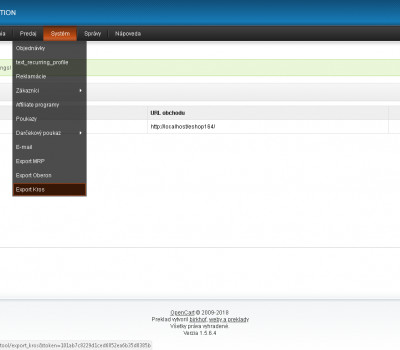
- In the OpenCart administration panel, navigate to Extensions / Installer and click the Upload button.
- Select the downloaded file and wait until the module is fully installed. After successful installation, the message “Application installed successfully” will be displayed.
- Go to the Extension Modifications (Application Manager) and click the Refresh or Update button to rebuild modifications.
- Then open User Groups and assign permissions to view and manage the module for the administrator or selected users by clicking Select All.
After completing these steps, the module will be successfully installed and ready to use. You can now proceed with its configuration.