

Kros Alfa+ XML Export - 2.x
Compatibility (OpenCart versions):
- Stock: In Stock
- Model: kros-alfa-plus-export-2x
Available Options
Kros Alfa+ – XML Export is an accounting module for the OpenCart platform that allows exporting invoices and related order data into the Kros Alfa+ accounting software. The module is designed to simplify the transfer of data from your e-shop to accounting without the need for manual invoice entry.
The generated XML file contains all required data for importing invoices into the Kros Alfa+ system. The solution is built to provide a clear and controlled export process suitable for everyday accounting operations.
Why use Kros Alfa+ export?
Manual invoice entry into accounting software is time-consuming and prone to errors. XML export from OpenCart enables direct transfer of accounting data into Kros Alfa+, significantly reducing processing time and minimizing the risk of mistakes.
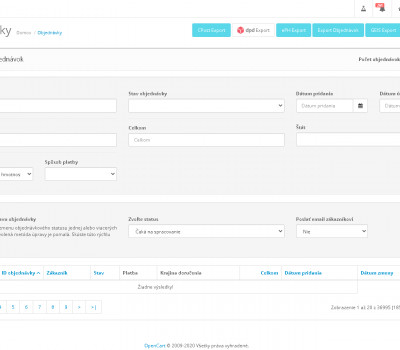
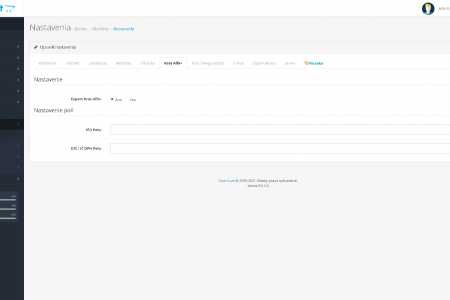
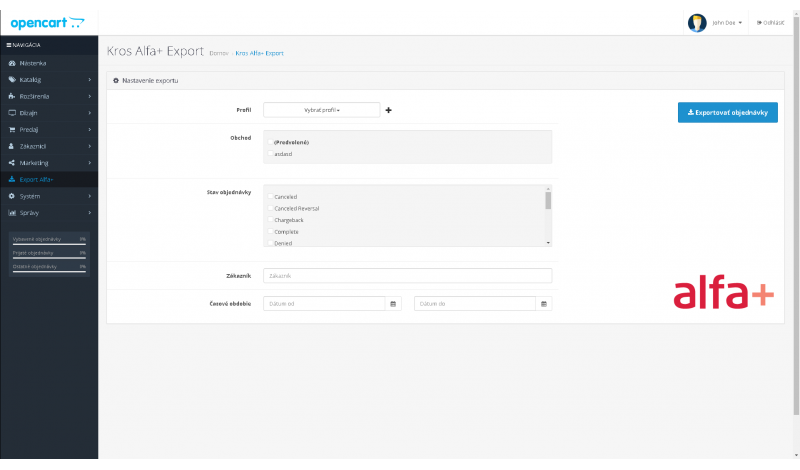
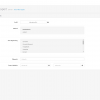
Before exporting, orders can be filtered using multiple criteria, giving you full control over which documents are included in the export.
Main benefits of the module
- export of invoices from OpenCart to Kros Alfa+ accounting software
- significant time savings in accounting processing
- elimination of manual invoice entry
- clear and controlled export process
- easy installation using VQMOD
- only new files are added, no original OpenCart files are overwritten
Export filtering options
- filter orders by time period
- filter by specific store (multistore support)
- filter orders by customer
- filter orders by order status
Important notice
The export has been tested and consulted with accountants. However, we are not responsible for incorrect imports or discrepancies caused by improper e-shop configuration or the use of other third-party modules.
Compatibility
The module is compatible with OpenCart 2.x.
If you need assistance with setup, custom modifications, or technical support, feel free to contact us at support@opencart-solutions.com.
Module Installation Instructions
Before starting the installation of the module in OpenCart, we strongly recommend creating a backup of all store files and the database.
- Download the module file for the required OpenCart version from our website (if the archive contains installation instructions, please follow them).
- In the OpenCart administration panel, navigate to Extensions / Installer and click the Upload button.
- Select the downloaded file and wait until the module is fully installed. After successful installation, the message “Application installed successfully” will be displayed.
- Go to the Extension Modifications (Application Manager) and click the Refresh or Update button to rebuild modifications.
- Then open User Groups and assign permissions to view and manage the module for the administrator or selected users by clicking Select All.
After completing these steps, the module will be successfully installed and ready to use. You can now proceed with its configuration.