


Pay by Square – QR Payments
- Stock: In Stock
- Model: pay-by-square
Available Options
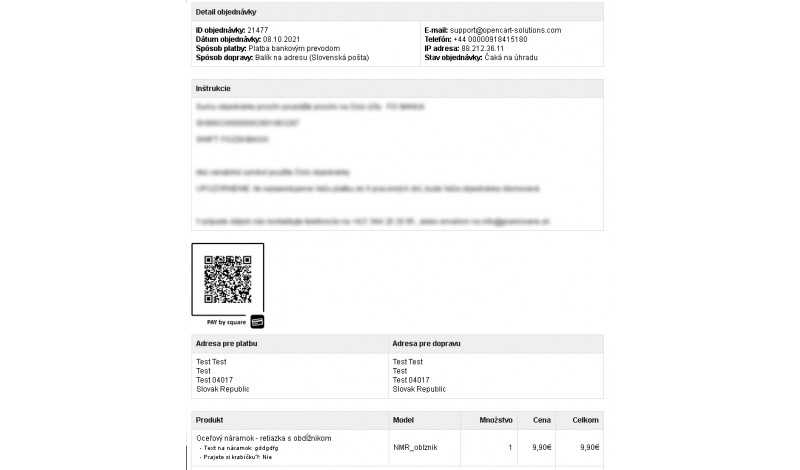
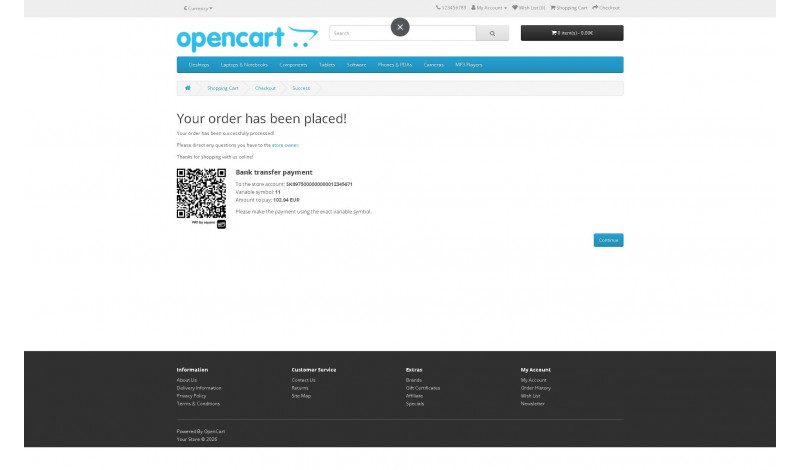
Pay by Square is a practical payment module for the OpenCart platform that significantly simplifies bank transfer payments using a QR code. The module automatically generates a QR code containing all bank transfer details and sends it to the customer together with the order information.
QR code payments are a modern and fast way to process bank transfers without the need to manually enter payment details. Customers can simply scan the QR code directly from their device screen and instantly initiate the payment in their banking application, saving time and reducing errors when entering the IBAN or transfer amount.
Why use Pay by Square?
For some customers, traditional bank transfers can be slower or less convenient, especially when they have to manually rewrite long account numbers and reference symbols. Pay by Square digitizes this process – the QR code automatically fills in all required payment details in the mobile banking app, including the amount and payment note. This increases the conversion rate of bank transfer payments and reduces errors caused by manual data entry.
Main benefits of the module
- automatically generated QR code for bank transfers
- simplified payment process for customers
- saves time and eliminates manual entry of payment details
- higher probability of successful bank transfer payments
- compatible with most mobile banking applications
- easy installation and configuration in OpenCart
- free updates
- regular additions of new features and improvements
Module options and settings
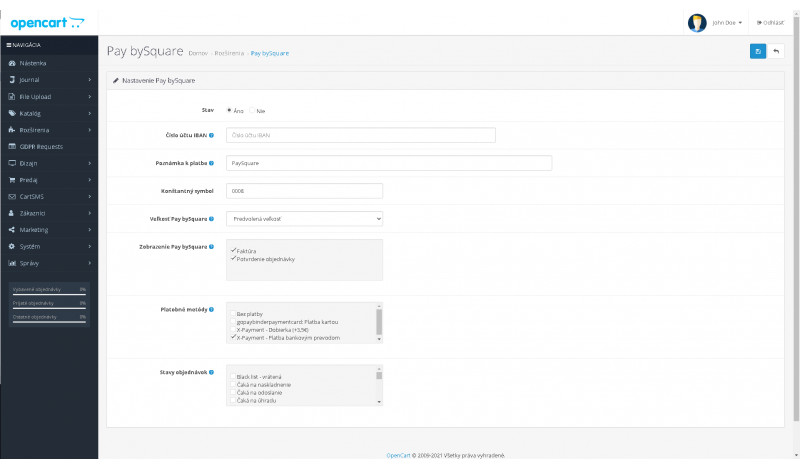
The Pay by Square module offers clear and easy-to-use settings in the OpenCart administration, allowing you to customize how the QR bank transfer payment is displayed according to your store’s needs and order workflow.
- IBAN configuration for bank transfers
- constant symbol configuration
- payment note configuration
- account holder configuration
- option to display the QR code in the order confirmation email
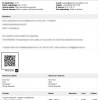
- option to display the QR code on invoices
- option to display the QR code on Success page
- option to control display based on order statuses
- option to restrict display by payment methods (including X-Payment support)
- support for Pro Email Template extension
- support for PDF Invoice Pro extension
- compatibility with all OpenCart themes
The settings are designed to give you full control over where and when the Pay by Square QR code is displayed, without any modifications to the OpenCart core or theme files.
Who is this module suitable for?
Pay by Square is ideal for online stores that want to offer customers a simple and modern alternative to standard bank transfers. The module is suitable for all types of stores that accept bank transfer payments, especially where customers prefer to pay from their mobile devices without manually entering long banking details.
Compatibility
The module is designed for OpenCart and is compatible with common versions of the platform. For proper functionality, a correctly configured bank transfer payment method is required in the store administration.
If you are interested in technical support, custom modifications, or assistance with setup, please contact us at support@opencart-solutions.com.
Module Installation Instructions
Before starting the installation of the module in OpenCart, we strongly recommend creating a backup of all store files and the database.
- Download the module file for the required OpenCart version from our website (if the archive contains installation instructions, please follow them).
- In the OpenCart administration panel, navigate to Extensions / Installer and click the Upload button.
- Select the downloaded file and wait until the module is fully installed. After successful installation, the message “Application installed successfully” will be displayed.
- Go to the Extension Modifications (Application Manager) and click the Refresh or Update button to rebuild modifications.
- Then open User Groups and assign permissions to view and manage the module for the administrator or selected users by clicking Select All.
After completing these steps, the module will be successfully installed and ready to use. You can now proceed with its configuration.
Module Installation Instructions (vQmod)
Before starting the installation of the extension in OpenCart, we recommend creating a backup of all e-shop files and the database.
- Make sure that vQmod is installed and working properly in your OpenCart. If vQmod is not installed, it must be installed first according to the official instructions.
- Download the module file for the required OpenCart version from our website (if the archive contains separate instructions, follow them).
- Extract the downloaded module archive on your computer.
- Upload the module XML file (e.g. module_name.xml) via FTP to the directory /vqmod/xml/.
- After uploading the file, the vQmod modification is applied automatically. No installation in the OpenCart administration is required.
- Log in to the OpenCart administration, go to User Groups, and set permissions to view and modify the module for the administrator or other selected users by clicking Select All.
- We recommend clearing the vQmod cache by deleting the files from the directory /vqmod/vqcache/, or by using an available cache clearing tool (if available).
After completing these steps, the module will be successfully installed and ready for use. You can then proceed with its configuration according to your needs.