


Slovak Post XML Export – ePosting Sheet
Compatibility (OpenCart versions):
Compatibility (OpenCart versions):
- Stock: In Stock
- Model: slovenska-posta-xml-export
Available Options
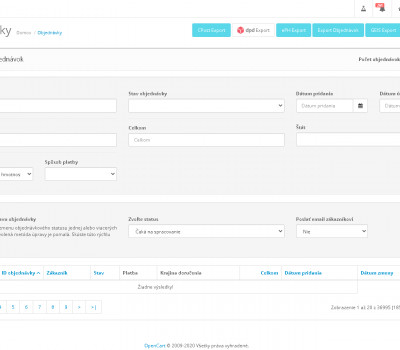
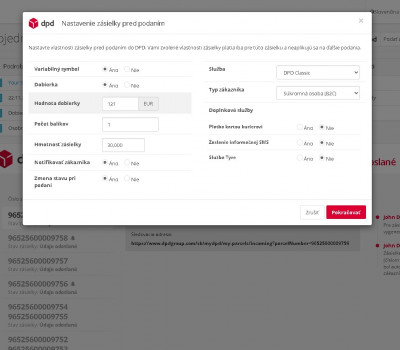
XML Export for Slovak Post ePosting Sheet is a practical module for the OpenCart platform that allows exporting logistics data from your online store directly into the Slovak Post ePosting Sheet application via an XML file. The module significantly simplifies the shipment submission process and eliminates the need for manual data entry.
With just a few clicks, you can prepare data for label printing and shipment processing in the Slovak Post system. If you currently rewrite orders manually, make mistakes, or spend a lot of time processing shipments, this module provides an efficient solution for everyday e-shop operations.
The module is actively used in real-world environments and is designed to be stable, fast, and reliable even when handling a higher volume of orders.
Why use XML export for Slovak Post?
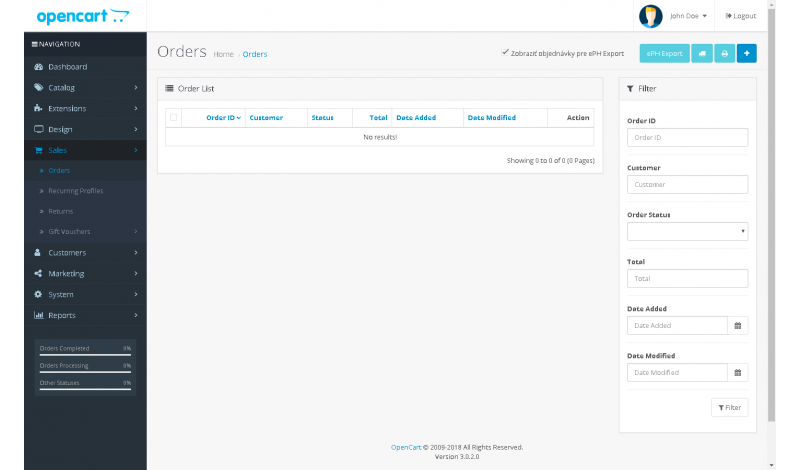
Exporting data to the ePosting Sheet allows you to process shipments quickly and accurately. Before exporting, you can individually select which orders should be included, giving you full control over what data is sent to the Slovak Post system.
Main benefits of the module
- export of logistics data to XML for the Slovak Post ePosting Sheet
- significant time savings when processing shipments
- elimination of manual data entry
- ability to individually select orders before export
- support for all Slovak Post shipment products
- easy installation using vQmod
- free updates
- no overwriting of original OpenCart files
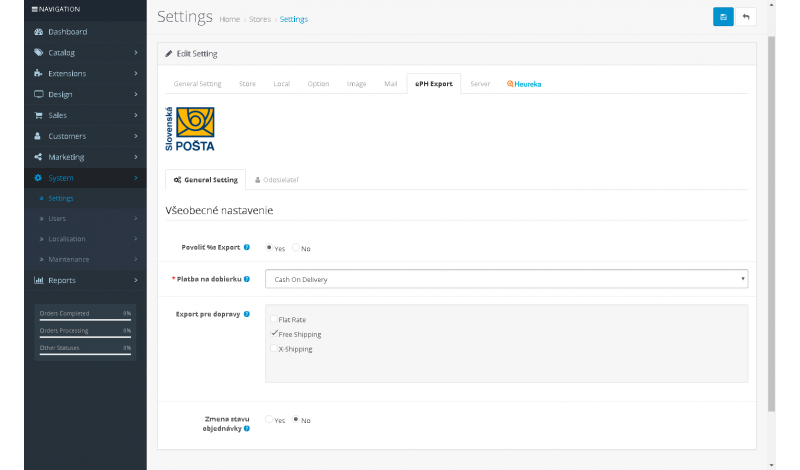
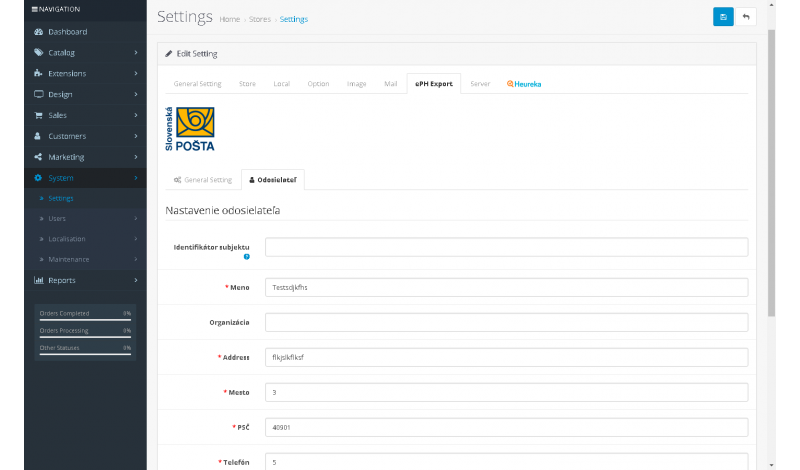
Module options and settings
- support for all Slovak Post shipment products
- sender configuration for all exported orders
- option to configure a custom cash on delivery module (if the standard OpenCart COD module is not used)
- ability to link the module with your shipping method
- automatic order status change during export
- display only orders that are linked to the shipping method
- automatic customer notification when the order status changes
- support for X-Shipping Pro, X-Payment Pro, Multishipping, and CzechPost
- option to select specific Slovak Post services
- blocking export of orders if the currency is not EUR
- option to select shipping for the “to post office” service
Compatibility
The module is compatible with OpenCart 2.x and OpenCart 3.x.
If you need help with setup, custom modifications, or technical support, please contact us at support@opencart-solutions.com.
Module Installation Instructions
Before starting the installation of the module in OpenCart, we strongly recommend creating a backup of all store files and the database.
- Download the module file for the required OpenCart version from our website (if the archive contains installation instructions, please follow them).
- In the OpenCart administration panel, navigate to Extensions / Installer and click the Upload button.
- Select the downloaded file and wait until the module is fully installed. After successful installation, the message “Application installed successfully” will be displayed.
- Go to the Extension Modifications (Application Manager) and click the Refresh or Update button to rebuild modifications.
- Then open User Groups and assign permissions to view and manage the module for the administrator or selected users by clicking Select All.
After completing these steps, the module will be successfully installed and ready to use. You can now proceed with its configuration.